
How to connect WooCommerce to Shopify Flow
Connect WooCommerce to Shopify Flow with HMAC-verified webhooks. Step-by-step setup, trigger checks, and troubleshooting tips.
WooCommerce can send a webhook for orders, products, customers and coupons from a WordPress store. Workflow Webhooks turns that call into a Shopify Flow trigger, so your store can react to it: tag a customer, add an order note, send an internal email, update a metafield - anything Shopify Flow can do.
This guide sets up the whole path - WooCommerce sends, Workflow Webhooks receives and verifies, Shopify Flow acts - with WooCommerce's HMAC signature checked on every request, so nothing but WooCommerce can start your workflow.
What you can build
- Bring an order from a WooCommerce store into Shopify Flow: tag the matching customer or add a note.
- Keep a customer list in step while you migrate from WooCommerce to Shopify.
- React in Shopify when a product goes out of stock on the WooCommerce side.
Typical events to send: order.created, order.updated, product.updated, customer.created.
Before you begin
- Workflow Webhooks installed on your Shopify store.
- Shopify Flow installed, which is free from the Shopify App Store.
- An account on WooCommerce with permission to create webhooks.
Step 1 - Create the webhook in Workflow Webhooks
- Open Workflow Webhooks -> Webhooks -> Create webhook and give it a name you will recognise in Flow, such as
WooCommerce events. - Under Authentication, choose HMAC.
- Under Signature provider, pick WooCommerce. The app fills in the header, algorithm, signed payload and replay window for you - there is nothing else to configure.
- Leave the secret empty for now and Save. Copy the webhook URL shown on the page.
See Authentication for the other authentication modes, and Payload mapping and Flow variables for choosing which fields reach Flow.
Step 2 - Add the endpoint in WooCommerce
In WordPress, open WooCommerce -> Settings -> Advanced -> Webhooks, add a webhook with the URL as Delivery URL, and set Secret.
How to find your WooCommerce signing secret
The Secret set on the webhook (WooCommerce -> Settings -> Advanced -> Webhooks).
WooCommerce's own documentation on webhook signatures has the exact wording and screenshots for your account.
Paste that secret into the webhook's Secret field in Workflow Webhooks and save. From that moment every WooCommerce delivery is verified before it reaches Flow.
What this checks
| What | Value |
|---|---|
| Signature header | X-WC-Webhook-Signature |
| Where the signature sits | The whole header value |
| What is signed | {body} |
| Signature | HMAC-SHA256, base64 encoded |
| Timestamp | Not used by this sender |
| Replay protection | None - this sender does not sign a timestamp, so every valid signature stays valid |
| The secret | Used as plain text. Paste it exactly as the sender shows it |
In the signed payload, {body} is the raw request body, byte for byte.
A request that fails any of these is rejected with 401, is recorded in History and troubleshooting, and never starts a workflow.
Step 3 - Build the Shopify Flow workflow
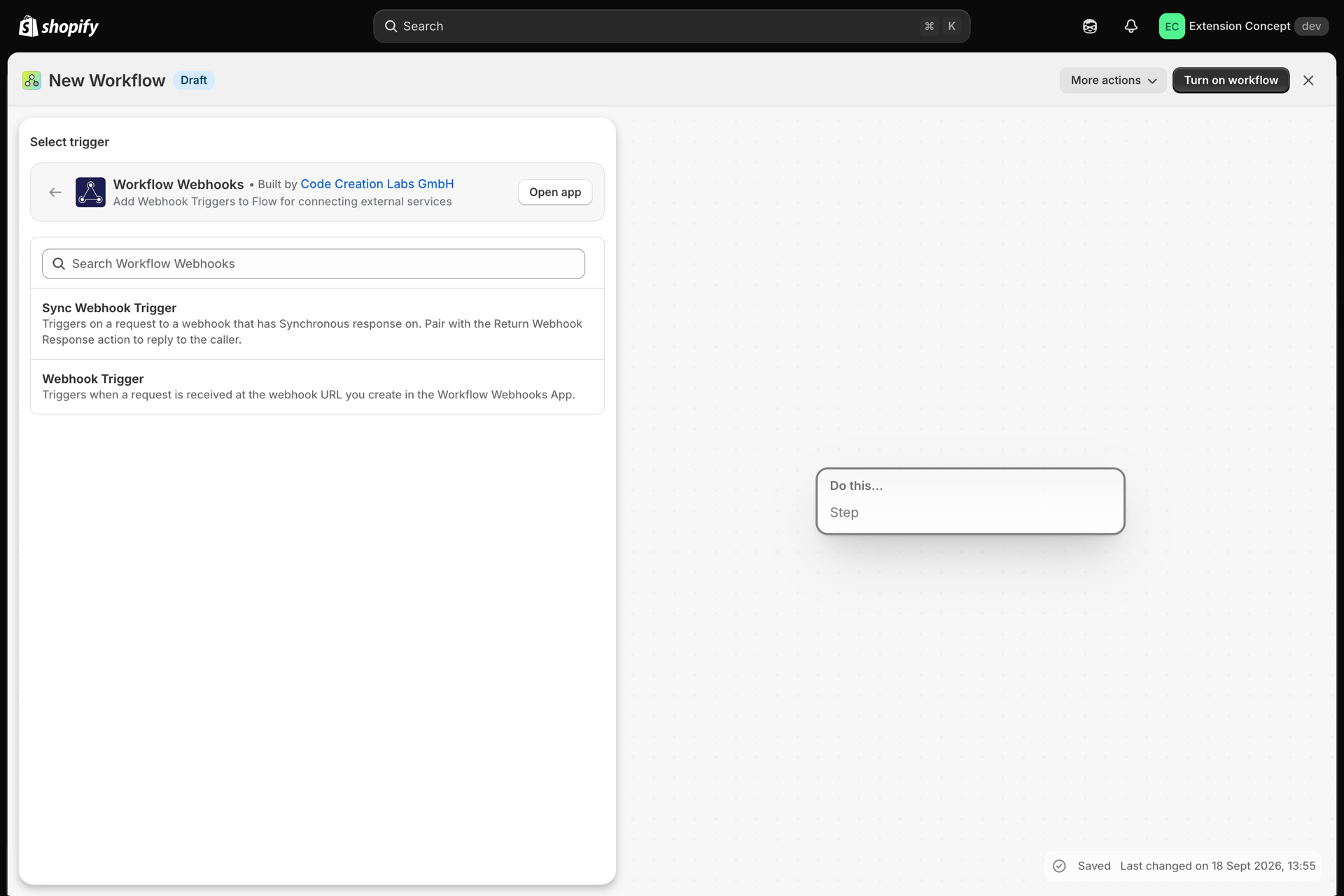
- In Shopify Flow, create a workflow and choose the Workflow Webhooks trigger.
- Press Record events, then send a test event from WooCommerce (or use Send test in Workflow Webhooks) so Flow learns the shape of your data.
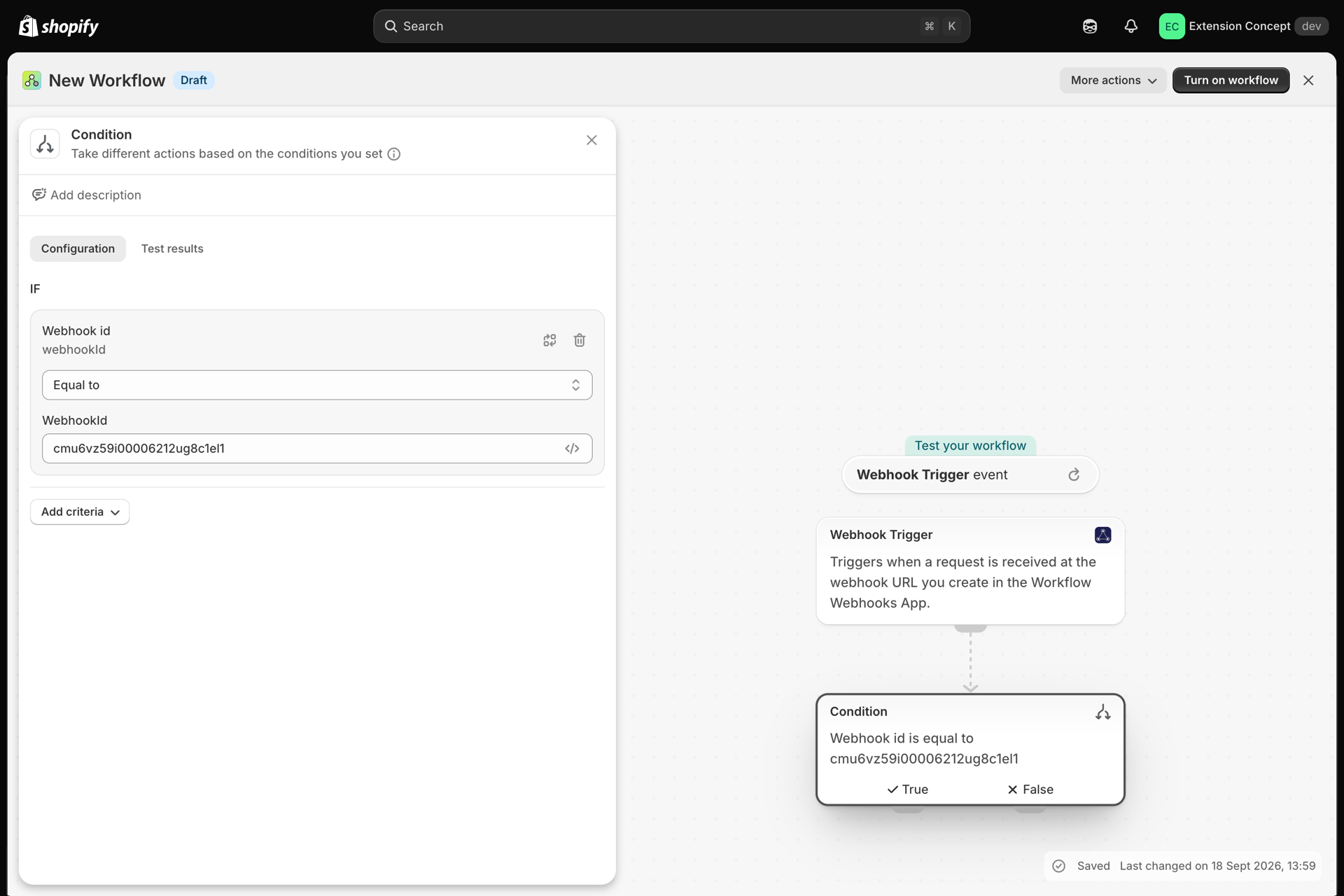
- Every webhook you own fires the same Flow trigger, so add a first condition on the webhook id to keep this workflow to WooCommerce only. The id is shown on the webhook page.
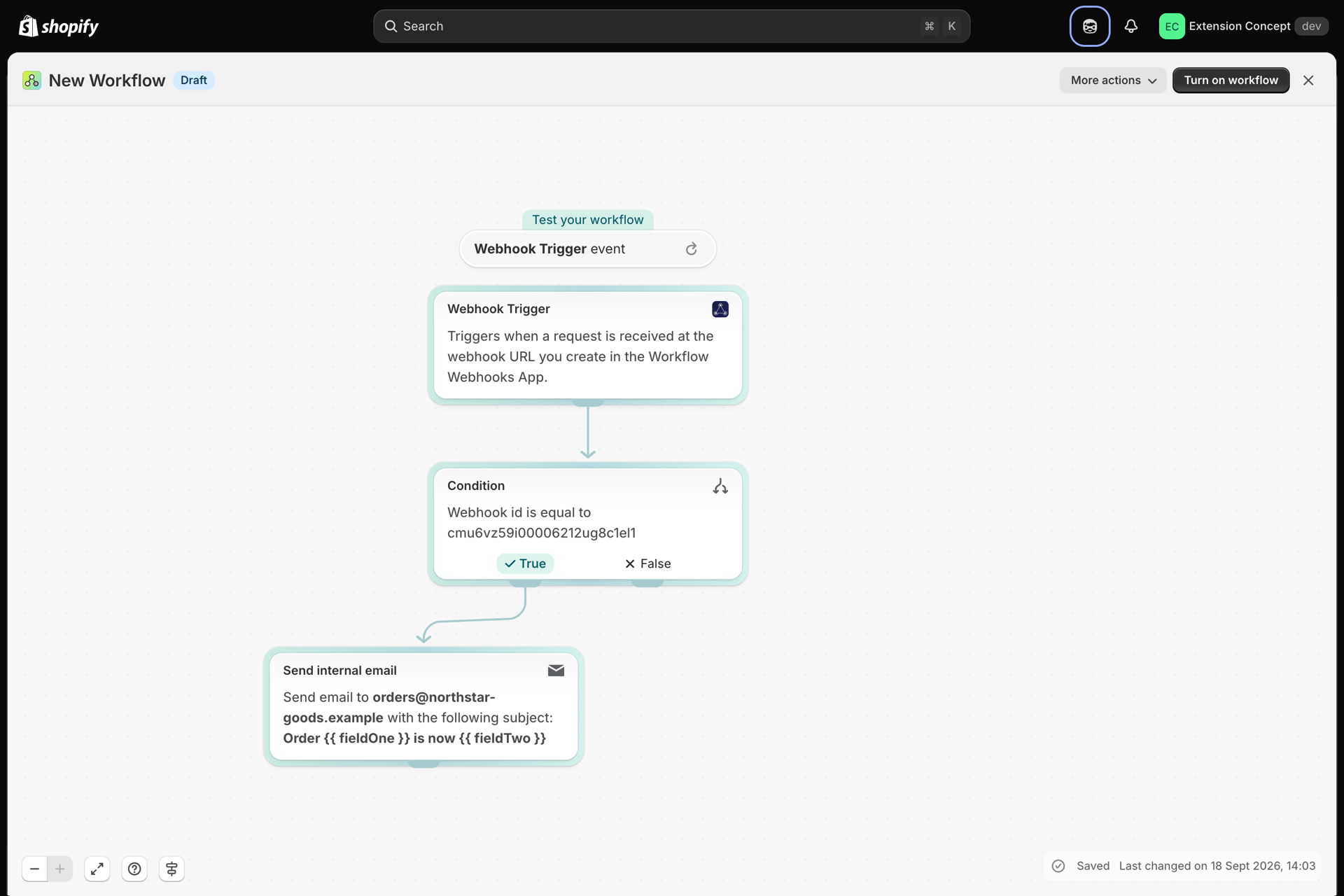
- Add your actions - tag a customer, add a note, send an internal email, update a metafield.
Step 4 - Test it end to end
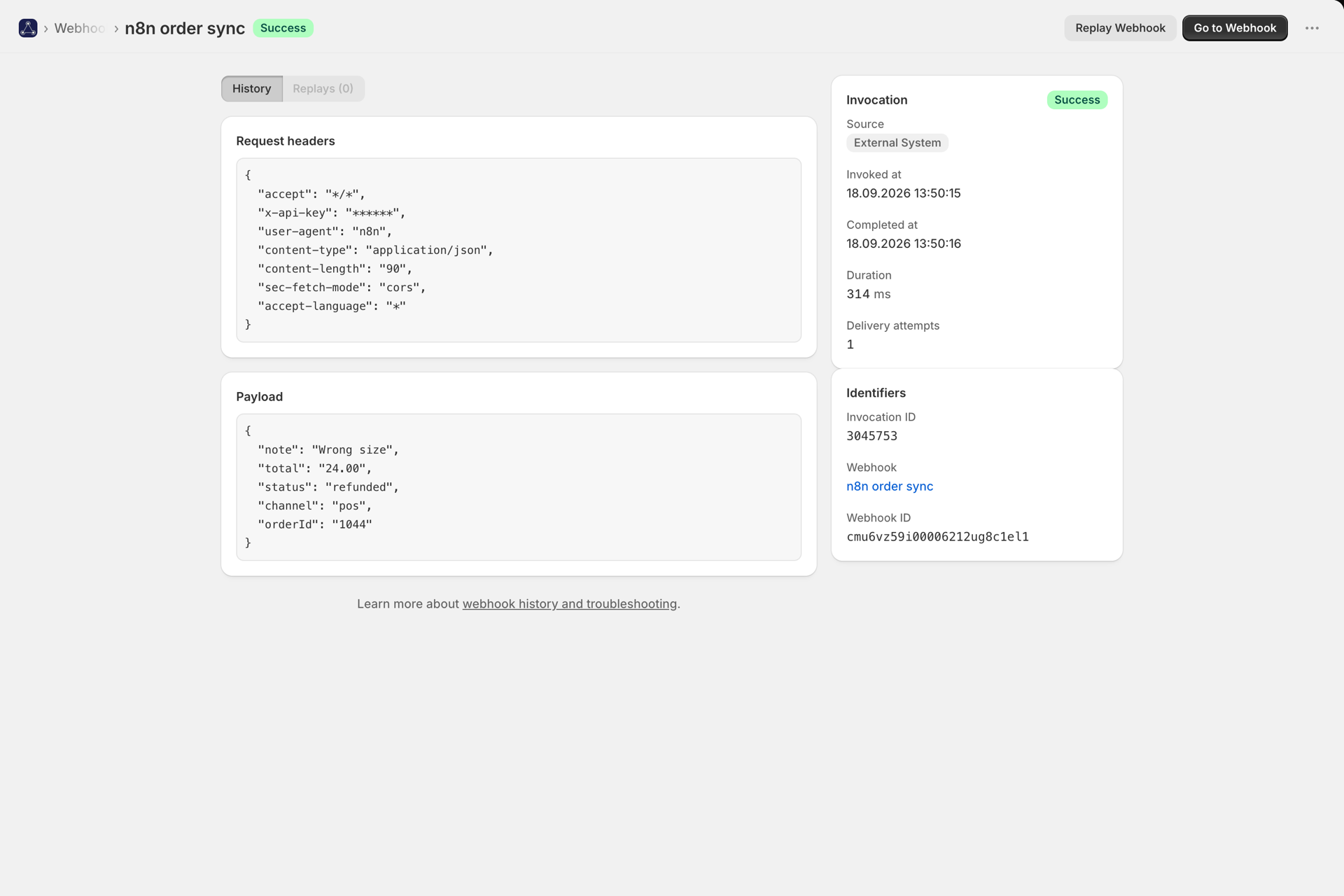
Trigger a real event in WooCommerce. In Workflow Webhooks -> History you should see the invocation with status Success. If the signature was wrong you get a failed entry with the reason instead, and Verifying signed webhooks explains the signature tester that shows you exactly which step failed.
The signature does not match
In this order: the secret (the most common cause - an extra space, or a key from the wrong environment), whether the sender is using a different endpoint's secret, and whether anything between WooCommerce and the app rewrites the body. Signatures cover the raw bytes, so a proxy that re-formats JSON breaks them. The signature tester on the webhook page shows the exact text that was signed.
I get 401 on every request
Check that the webhook's authentication is set to HMAC with the WooCommerce provider selected, that the secret is filled in, and that WooCommerce is posting to the URL exactly as the app shows it, including the code at the end.
Nothing appears in History
The request never arrived. Re-check the URL in WooCommerce, and look at WooCommerce's own delivery log for the response it got. A 404 means a wrong or deleted webhook, a 429 means you are over your plan's invocation limit - see Plans and usage.
The workflow runs for the wrong events
Every webhook in your store fires the same Flow trigger. Add a condition on the webhook id as the first step of the workflow, or narrow the events you send from WooCommerce.
Related
- Verifying signed webhooks - every provider we verify, and how to describe one we do not.
- Payload mapping and Flow variables - getting the right fields out of the payload and into Flow.
- Duplicate delivery protection - what happens when WooCommerce retries a delivery.
- History and troubleshooting - the log of every request, with replay.