
Scheduled URL polling
Let the app fetch a URL every 5 minutes to once a day and send the response into your webhook, so Flow runs on a timer instead of waiting for a caller.
A webhook normally waits for someone to call it. With a schedule, the app does the calling: it fetches a URL you name on a fixed interval and sends the response into the same webhook, so your Shopify Flow workflow runs on a timer from any API that returns JSON, form data or XML.
Typical uses: pull a supplier's stock feed every 15 minutes, check an ERP for new orders each hour, or read a status endpoint once a day and let Flow act on it.
Setting one up
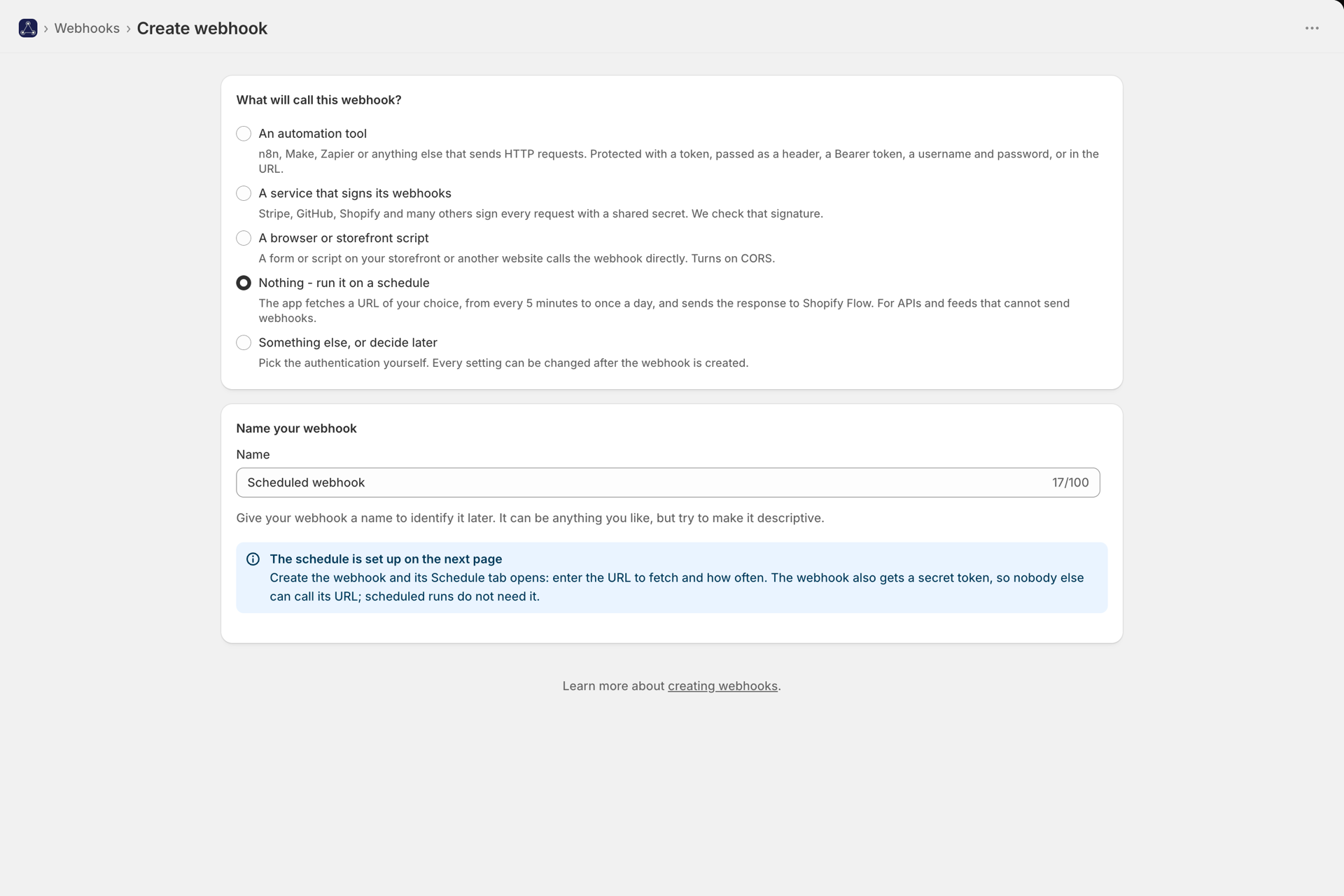
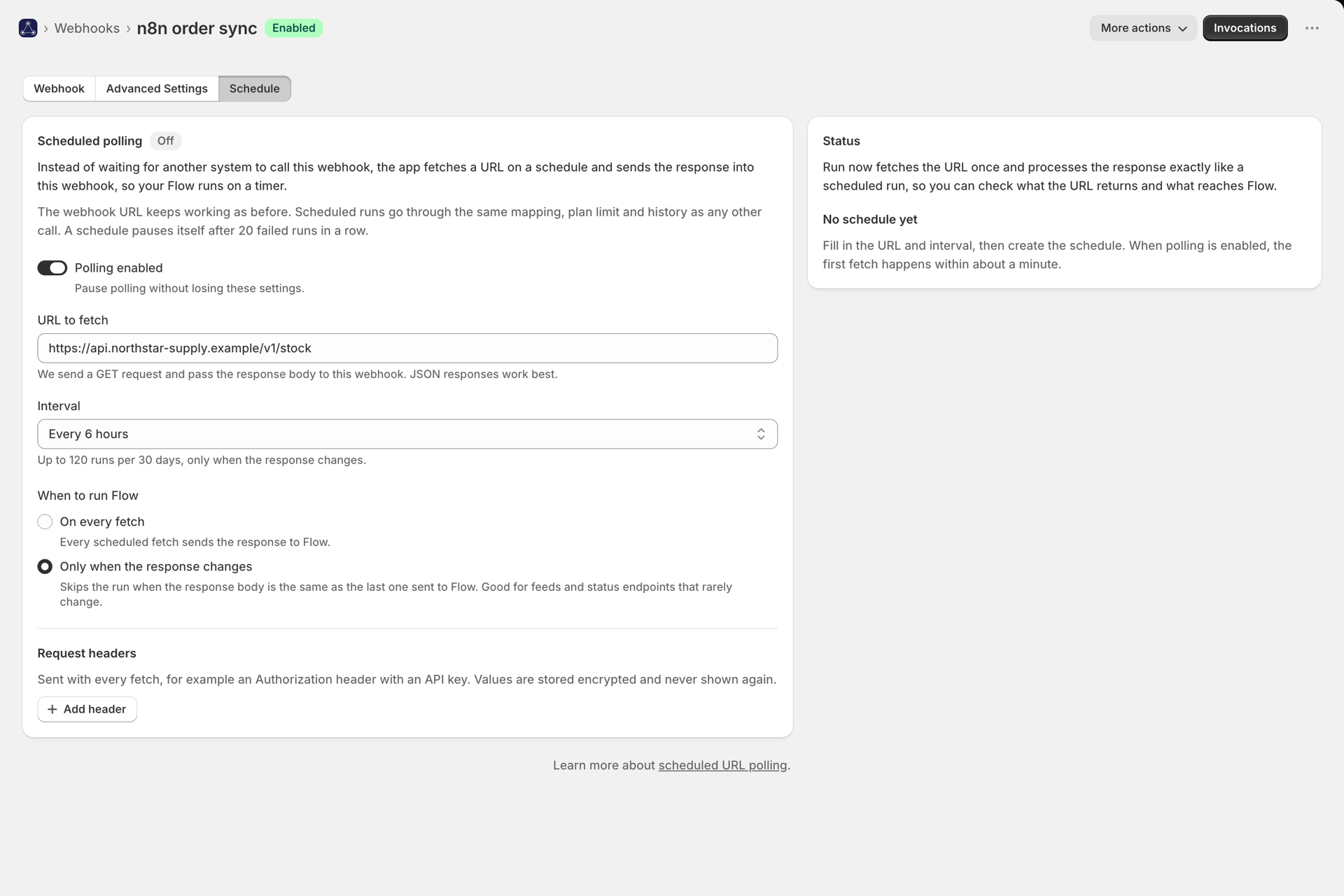
For a new webhook, choose Create webhook and answer "What will call this webhook?" with Nothing - run it on a schedule. The webhook is created with a secret token, so nobody else can call its URL, and opens on its Schedule tab. For a webhook you already have, open it and go to the Schedule tab. Then fill in:
| Field | What it does |
|---|---|
| Enabled | Turns the schedule on. The webhook URL keeps working either way. |
| URL | The address to fetch. http and https only, and it must be reachable from the public internet. |
| Interval | Every 5, 15 or 30 minutes, every 1, 3, 6 or 12 hours, or once a day. |
| Mode | Every fetch fires Flow each run. Only when the response changes fires only when the body differs from the previous run. |
| Request headers | Optional, for an API key or bearer token. Stored encrypted and never shown again. |
The first run happens within a minute of enabling it.
Mapping the response
The fetched body goes through the webhook exactly like a request someone sent you: it is parsed by content type, your field mapping picks the values Flow receives, and array splitting applies if it is set.
Because the API decides its own response shape, scheduled runs skip the "unexpected fields" check that applies to JSON sent by your own systems. You only need to map the values you care about.
{
  "updated_at": "2026-09-17T08:00:00Z",
  "items": [
    { "sku": "ABC-1", "stock": 4 },
    { "sku": "ABC-2", "stock": 0 }
  ]
}
Map updated_at to a Flow field to use it in your workflow. To handle each item on its own, set the split path to items under Advanced Settings - every element then fires its own Flow run. See Body formats and splitting arrays.
Run now
Run now does a real run immediately: it fetches the URL, shows you the HTTP status, the response preview and what happened (fired, unchanged, or the error), and fires Flow if the response is usable. Use it after changing the URL or headers rather than waiting for the next interval.
Only when the response changes
In this mode the app compares the fetched body with the previous one and only fires Flow when it differs. Use it for endpoints that return the same document until something actually changes, such as a stock or status feed. The comparison is on the whole body, so an API that includes a timestamp or request id in every response will look different every time.
When a schedule fails
The Status block on the tab shows the last run, the last HTTP status, the next run and the last error.
- A network error, a non-2xx status or a body that cannot be parsed counts as a failed run and does not fire Flow.
- After 20 failures in a row the schedule pauses itself and says so, rather than calling a dead URL forever. Fix the URL or credentials and enable it again.
- Reaching your plan limit is not counted as a failure. Those runs are blocked and shown on the dashboard.
What the app will not fetch
Only public addresses. Internal and private addresses (localhost, private ranges, cloud metadata endpoints) are refused, including when a redirect points at one. Responses are capped at 1 MB and 10 seconds, and at most 3 redirects are followed. Your headers are dropped if a redirect leads to a different site.
Where scheduled runs appear
In History, with the source Scheduled. Everything else works as usual: the payload, the Flow trigger result, retries, and replay.