
Signed-in customers on your storefront
Let only signed-in customers call a webhook through your store's domain, switch off the direct URL and get the verified customer ID in Shopify Flow.
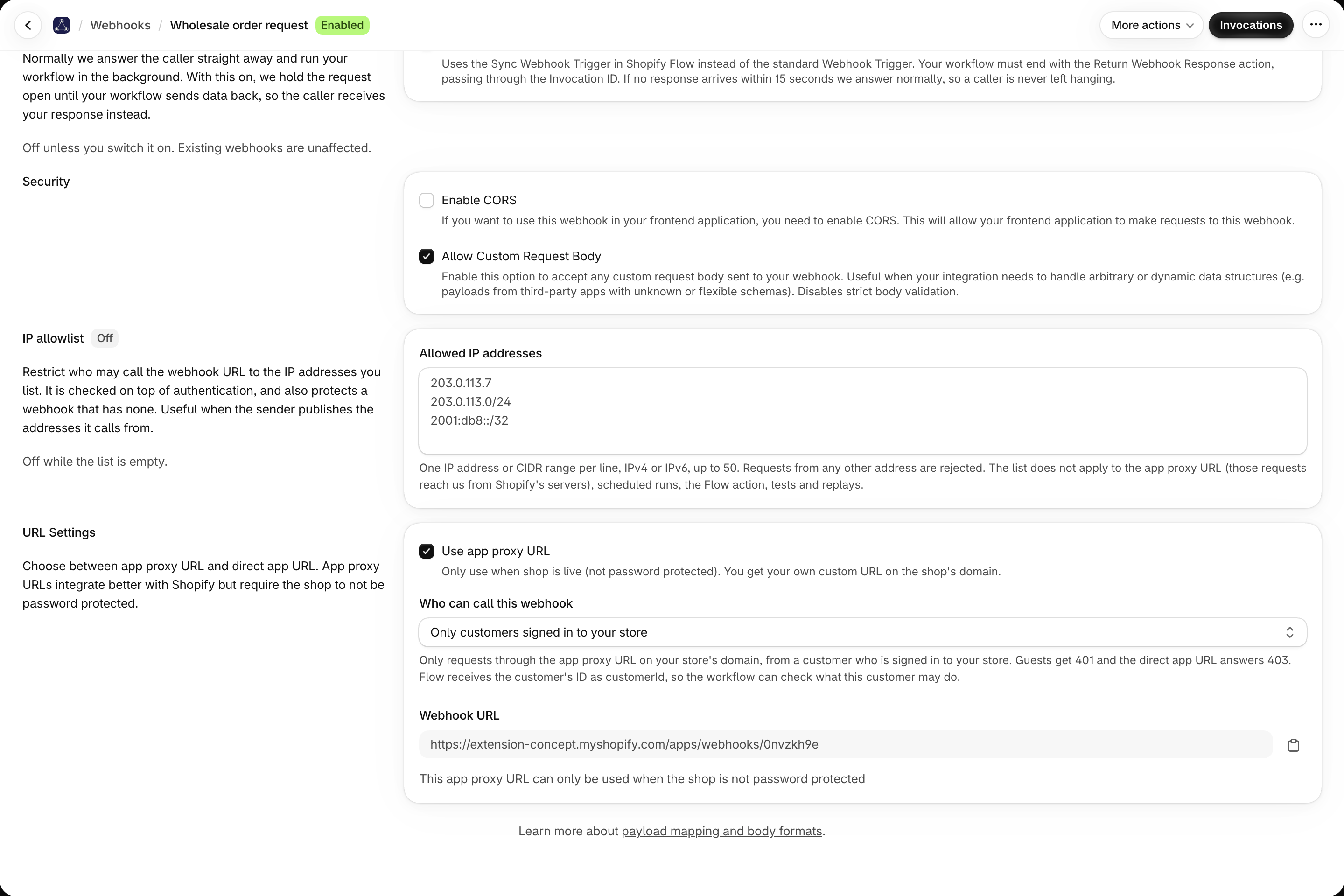
Call a webhook from your own storefront and know which customer sent it. A wholesale order form, a reorder button on a B2B account page or a request form for signed-in customers can start a Shopify Flow workflow, and the workflow receives the ID of the customer who is signed in. Shopify signs that ID, so nobody can pretend to be another customer.
This builds on the app proxy URL, see CORS, the app proxy URL and browser calls.
Set it up
- Open the webhook and go to Advanced Settings.
- Under URL Settings, switch on Use app proxy URL. The webhook URL now lives on your store's domain, for example
https://your-store.com/apps/webhooks/abc123. - In Who can call this webhook, pick one of three options:
| Option | App proxy URL | Direct app URL |
|---|---|---|
| Anyone with the URL | Works for everyone | Works |
| Only through your store's domain | Works for everyone, guests included | Refused with 403 |
| Only customers signed in to your store | Works for signed-in customers, guests get 401 | Refused with 403 |
- Save. The setting applies to the next request.
What the app checks
Every request through the app proxy URL carries a signature from Shopify. The app checks, in this order:
- The signature. A request without a valid Shopify signature is refused with 401. Nobody can forge it, because Shopify makes it with your app's secret.
- Your store. A request signed for another store is refused with 403.
- The signed-in customer. With Only customers signed in to your store, a request without a signed-in customer is refused with 401 (
customer_login_required). The customer ID comes from the signature, never from the request body. - The direct URL. With either restriction, the direct app URL answers 403 (
proxy_required), so nobody can go around these checks.
A refused request never reaches Shopify Flow and does not count toward your plan.
What Shopify Flow receives
The Webhook Trigger and the Sync Webhook Trigger have a field customerId: the numeric ID of the signed-in customer, for example 7350001. It is empty for guests and for every request that did not come through the app proxy URL. Your mapped fields arrive as usual, see Payload mapping and Flow variables.
Call it from your storefront
The request has to come from a page of your store while the customer is signed in, so that it goes through your store's domain. Copy the webhook URL from the app: Shopify lets you change the proxy path, so yours can differ from the example. This snippet in a theme section sends the company location the B2B customer is buying for:
<script>
  fetch('/apps/webhooks/abc123', {
    method: 'POST',
    headers: { 'Content-Type': 'application/json' },
    body: JSON.stringify({
      companyLocationId: 'gid://shopify/CompanyLocation/{{ customer.current_location.id }}'
    })
  })
</script>
Map Field 1 to companyLocationId so that the workflow receives the location as fieldOne.
Check the customer in Shopify Flow
Shopify Flow can read everything about the customer, so the check belongs in the workflow:
- Trigger: Webhook Trigger from Workflow Webhooks. If you have several webhooks, add a condition: Webhook ID is equal to the ID shown in the app.
- Get customer data with the query
id:{{customerId}}. Flow loads the signed-in customer, including tags and company roles. - Condition: the customer has the tag
wholesale, and one of their company contact profiles has a role assignment whose company location ID is equal tofieldOneand whose role isOrdering onlyorLocation admin. - Then: your actions, for example create a draft order for that location. Otherwise: stop, or answer the storefront with a Synchronous response so the page can tell the customer why.
Good to know
- The app proxy URL needs your storefront to be reachable. On a password-protected store it answers only after the storefront password was entered.
- Guests get the 401 answer, so show a sign-in link on that page.
- History shows the customer ID of each request, and a replay sends it again.
- When a customer asks for their data to be erased, the history entries they sent are deleted.