
Start a workflow at a later time
The Trigger Webhook action can start a Shopify Flow workflow at a set date and time or after a delay. See what to enter and how to manage waiting runs.
The action Trigger Webhook in Shopify Flow calls one of your webhooks, and the workflow that starts from that webhook runs right away. The action has an optional field named Run at. With a value in this field, the call waits: until a date and time, or for a delay you set. This is how you start a workflow at a later time.
The value can come from a Flow variable, so the wait can be different for every run. Examples: at 9:00 on the date in an order metafield, three days after a delivery date, or on the renewal date of a customer. A Wait step with a fixed duration cannot do that.
How it works
- A workflow reaches the action Trigger Webhook with a future time in the field
Run at. - The app stores the run together with the field values of that moment. The run is now listed on the page Scheduled runs in the app.
- When the time comes, the app calls the webhook exactly like an immediate call. The mapping of the webhook and the plan check apply at that moment. Then the workflow that starts with the trigger Webhook Trigger runs.
Set it up
- In Shopify Flow, add the action Trigger Webhook to a workflow, or open a workflow that has it. See Calling a webhook from Flow.
- Pick the webhook and fill in the fields as usual.
- Fill in the field
Run at.
Leave the field empty and the action triggers the webhook right away. Workflows you already have are not affected: without a value the action works as it always did.
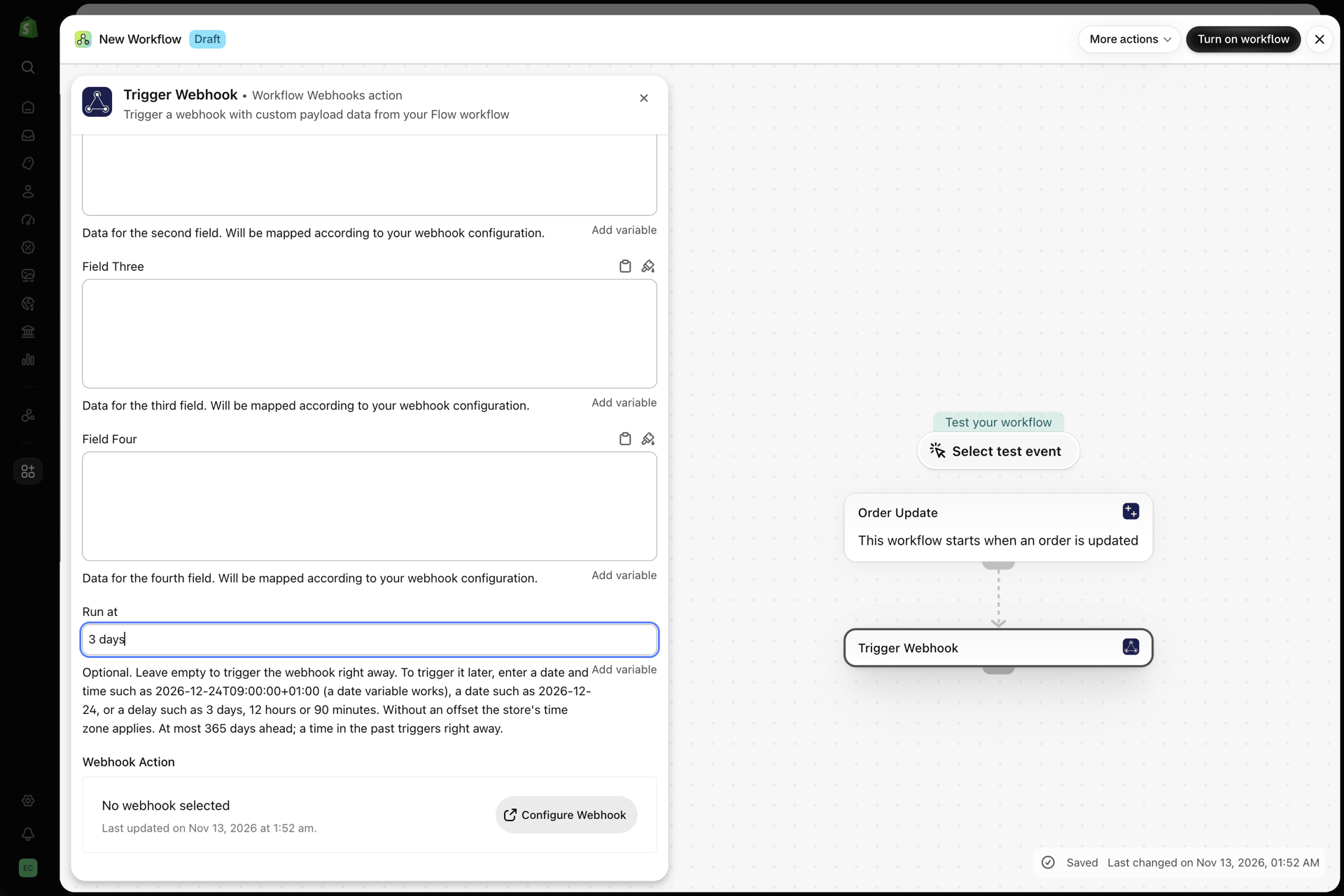
What you can enter
| Kind of value | Example | When the run starts |
|---|---|---|
| A delay in days | 3 days |
Three days after the Flow step ran |
| A delay in hours | 12 hours |
Twelve hours after the Flow step ran |
| A delay in minutes | 90 minutes |
Ninety minutes after the Flow step ran |
| A date and time with a UTC offset | 2026-12-24T09:00:00+01:00 |
At exactly that moment |
| A date and time without a UTC offset | 2026-12-24 09:00 |
At that time in the time zone of your store |
| A date without a time | 2026-12-24 |
At 00:00 on that day in the time zone of your store |
| An empty field | Right away |
Delays
A delay is a whole number followed by a unit: minutes, hours, days or weeks. Always write the unit in English, even if your Shopify admin is set to another language. The app does not understand translated units.
Short forms work too: 90 min, 12 h, 3 d, 2 w.
Fractions do not work. For one and a half hours, enter 90 minutes.
Dates and times
Write the year, the month and the day with hyphens. The time is optional and follows after a space or after the letter T.
A UTC offset at the end pins the exact moment. Examples of a UTC offset: +01:00, -05:00, Z. The letter Z stands for UTC. Without a UTC offset, the app reads the value in the time zone of your store.
Variables
A date variable from Shopify Flow already has the form of a date and time with a UTC offset. You can put it into the field as it is. A date metafield gives a date without a time, so the run starts at 00:00 in the time zone of your store.
Limits
- A time in the past triggers the webhook right away, as if the field were empty. A variable that sometimes holds a date that has already passed therefore does not break the workflow.
- A run can be scheduled at most 365 days ahead.
The step also fails with a message in three other cases: the webhook is disabled, the fields are too large for Shopify Flow, or your store already has as many waiting runs as your plan allows.
The Scheduled runs page
Open the page Scheduled runs in the app. Every run is listed with its webhook, its status, the time it is scheduled for and the time it was created. A filter at the top narrows the list to one status.
| Status | Meaning |
|---|---|
| Scheduled | The run is waiting for its time |
| Sent | The webhook was called. The link Open the invocation leads to the entry in History |
| Failed | The run was due but could not be sent. The column Details shows the reason |
| Canceled | The run was canceled before it started |
A run starts shortly after its time, usually within a minute. Runs that are sent, failed or canceled stay on the page for 30 days.
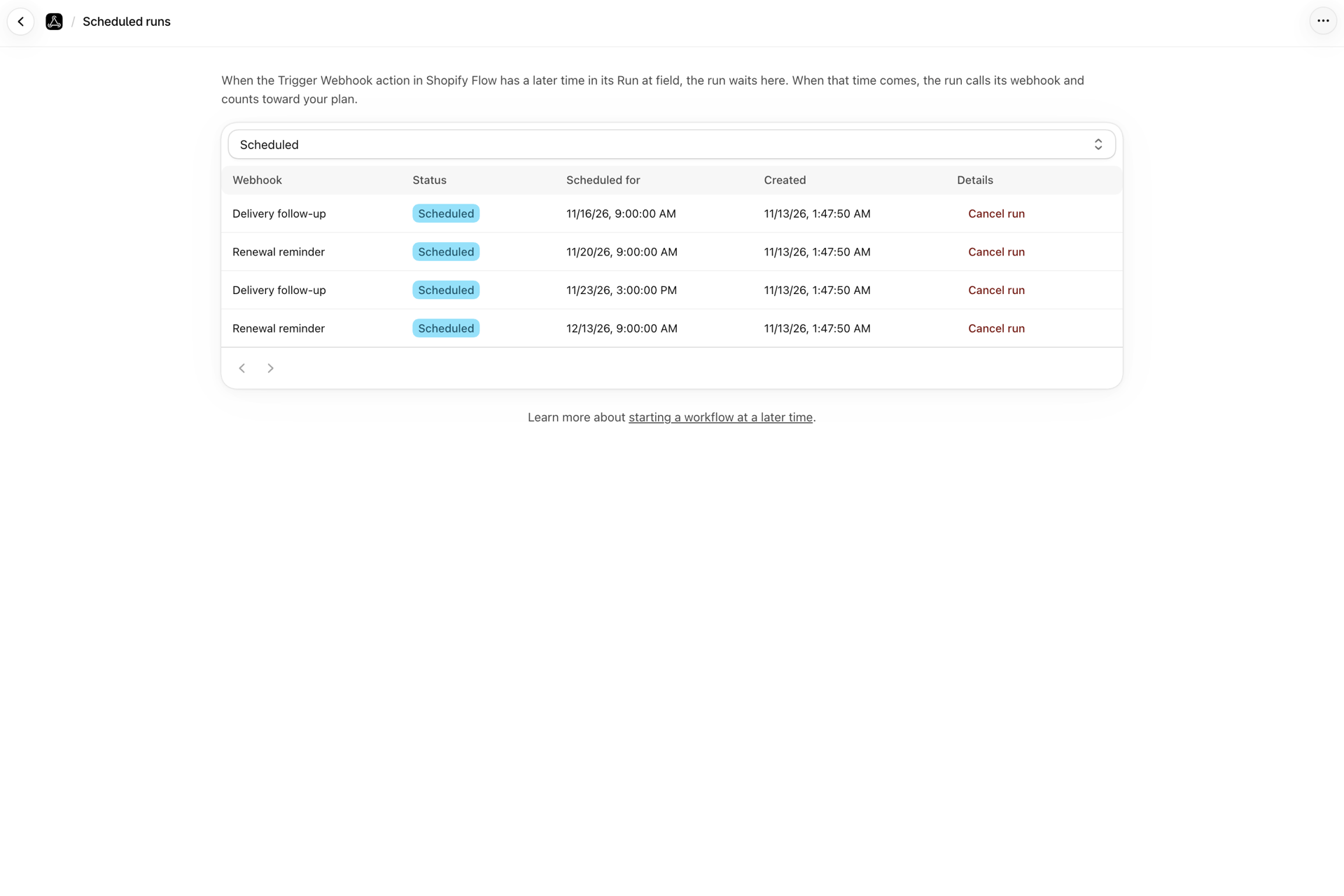
Cancel a run
Click the button Cancel run on a run that is still waiting, and confirm. The webhook of this run will not be called. This cannot be undone. To run it after all, start the workflow again. A run that has already started can no longer be canceled.
Why a run failed
| Reason shown | What to do |
|---|---|
| The plan limit was reached when the run was due | Upgrade your plan, or wait until older usage leaves the 30-day window. Then start the workflow again. The run is not repeated by itself |
| The webhook was disabled when the run was due | Enable the webhook and start the workflow again |
| The fields were too large for Shopify Flow | Send less data in the four fields |
| The run could not be passed on to the webhook | A problem on our side did not clear after several attempts. Start the workflow again, and contact us if it happens again |
One special case: a webhook with a transform function can show a run as sent without an invocation. The function returned nothing, so nothing was sent to Shopify Flow.
What counts toward your plan
A scheduled run counts when it fires, not when it is scheduled. Scheduling is free, and a run you cancel never counts. When the run fires, it counts as one webhook call, like every other call of the action Trigger Webhook.
This also means that the plan limit is checked on the day the run is due. If your plan is used up at that moment, the run fails and is not sent later.
The number of runs that can wait at the same time depends on your plan. When that number is reached, the step Trigger Webhook fails with a message until waiting runs have been sent or canceled. See Plans and usage.
Delivery is at least once
Every run that is due is sent. In rare cases a run can be sent twice, for example when our servers restart at the very moment a run goes out. Build the workflow so that a repeat does no harm. Adding a tag twice is harmless. Sending the same email twice is not. For steps that must not repeat, add a condition that checks whether the work is already done, for example a tag the workflow sets at its end.
Disabled or deleted webhooks, and uninstalling
- The webhook is disabled when the Flow step runs: the step fails and nothing is scheduled.
- The webhook is disabled later: runs that are already waiting stay on the list. Each of them fails when its time comes, unless the webhook is enabled again by then.
- The webhook is deleted: its scheduled runs are deleted with it.
- The app is uninstalled: runs that are still waiting are canceled and are not sent. Reinstalling the app does not bring them back.
Can I change the time of a run that is waiting?
No. Cancel the run on the page Scheduled runs and start the workflow again with the new time.
Which time zone applies?
A value with a UTC offset is an exact moment and needs no time zone. A value without a UTC offset is read in the time zone of your store. This also applies to a date without a time.
Can I schedule a call of the webhook URL from outside Shopify the same way?
No. The field belongs to the action Trigger Webhook in Shopify Flow. To delay something that arrives from outside, let the webhook start a workflow. This workflow then uses the action Trigger Webhook with a value in the field Run at.
Does a scheduled run need the secret token of the webhook?
No. Like every call of the action Trigger Webhook, a scheduled run comes from inside Shopify and skips authentication.
Can I retry a failed run?
Not from the page Scheduled runs. Fix the cause shown in the column Details and start the workflow again.
Related
- Calling a webhook from Flow - the Trigger Webhook action and its four fields.
- Plans and usage - what counts as a call and what your plan includes.
- History and troubleshooting - the invocation behind a run that was sent.
- Scheduled URL polling - a different feature: fetch a URL on a schedule and send the response to Flow.